You can configure your AI Agent to communicate with users via email through the Bot Framework. By configuring your AI Agent to access an email account, it receives a message when a new email arrives. This enables the AI Agent to use email as a channel for responding to user inquiries, such as sending an email reply to a user message.
- The Email channel works with Office 365 only. Other email services are not currently supported.
- This channel is available in DRUID version 7.0 and higher and only in cloud and hybrid DRUID deployments. You cannot activate the channel in DRUID on-premise deployments.
- The Email channel only supports message steps. Rich content flow steps (such as hero cards or choice steps) are not supported.
Prerequisites
Before configuring the Email channel, ensure you have:
- A published a AI Agent.
- A dedicated M365 email account for the AI Agent. This account must use Modern authentication (OAuth). Contact your company's email administrator to obtain this dedicated M365 email account.
- The AI Agent M365 email account must be logged into any Microsoft 365 product in your browser before you start configuration.
Configuring the Email channel
To configure the Email channel, follow these steps:
- Log in to the Druid Portal and select your AI Agent.
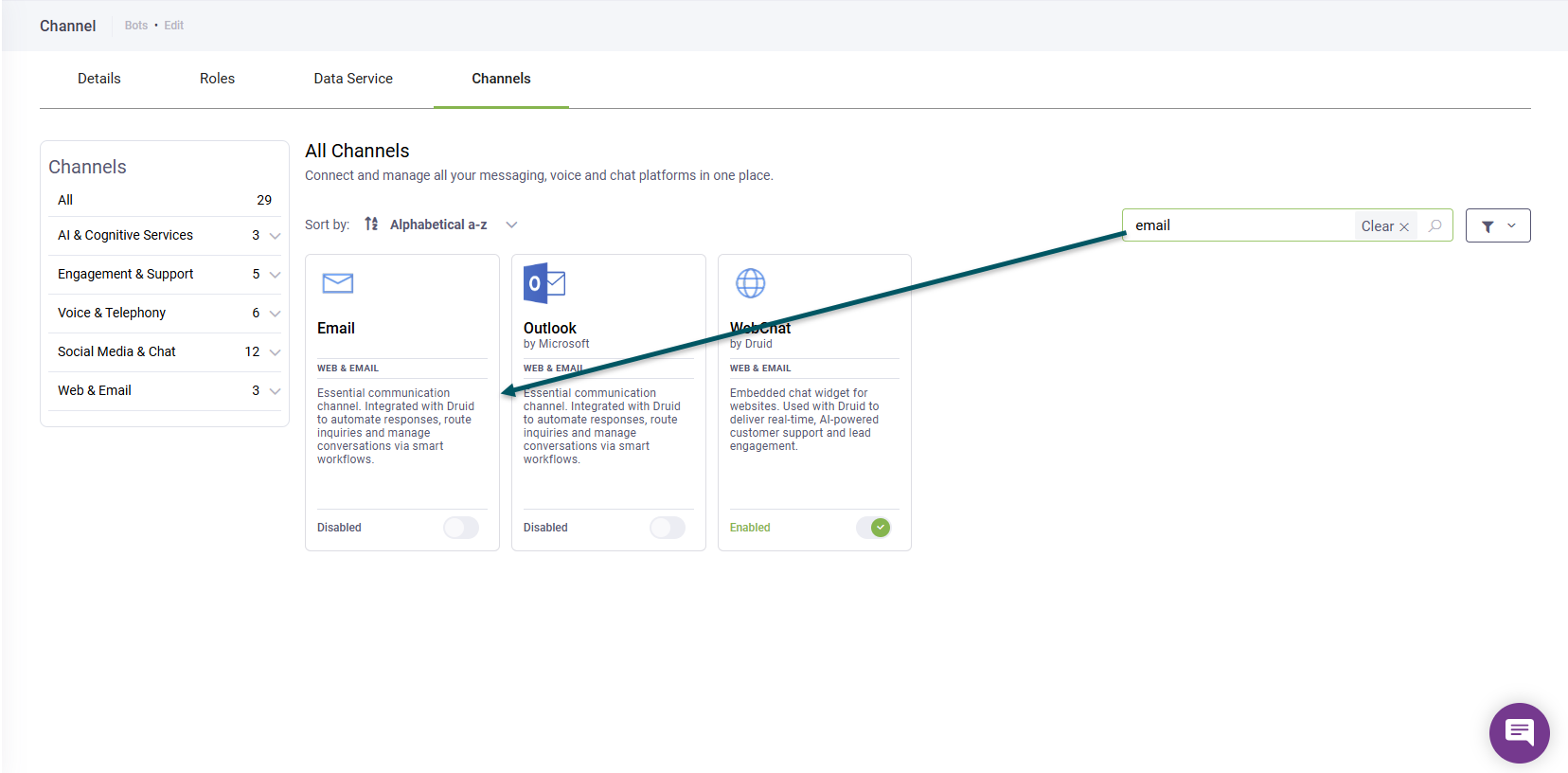
- Click the Channels tab.
- Search for 'email' and click the Email card.
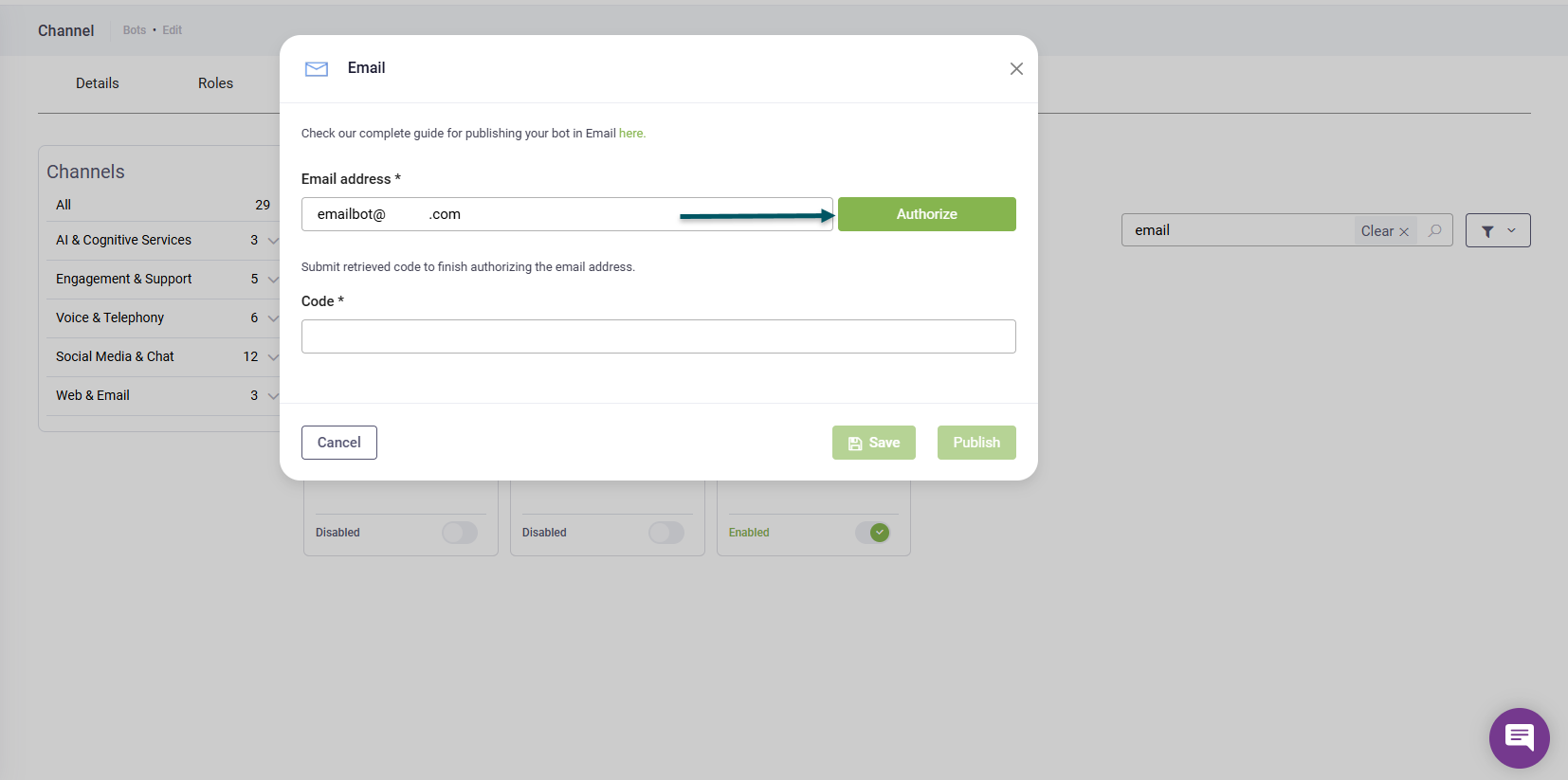
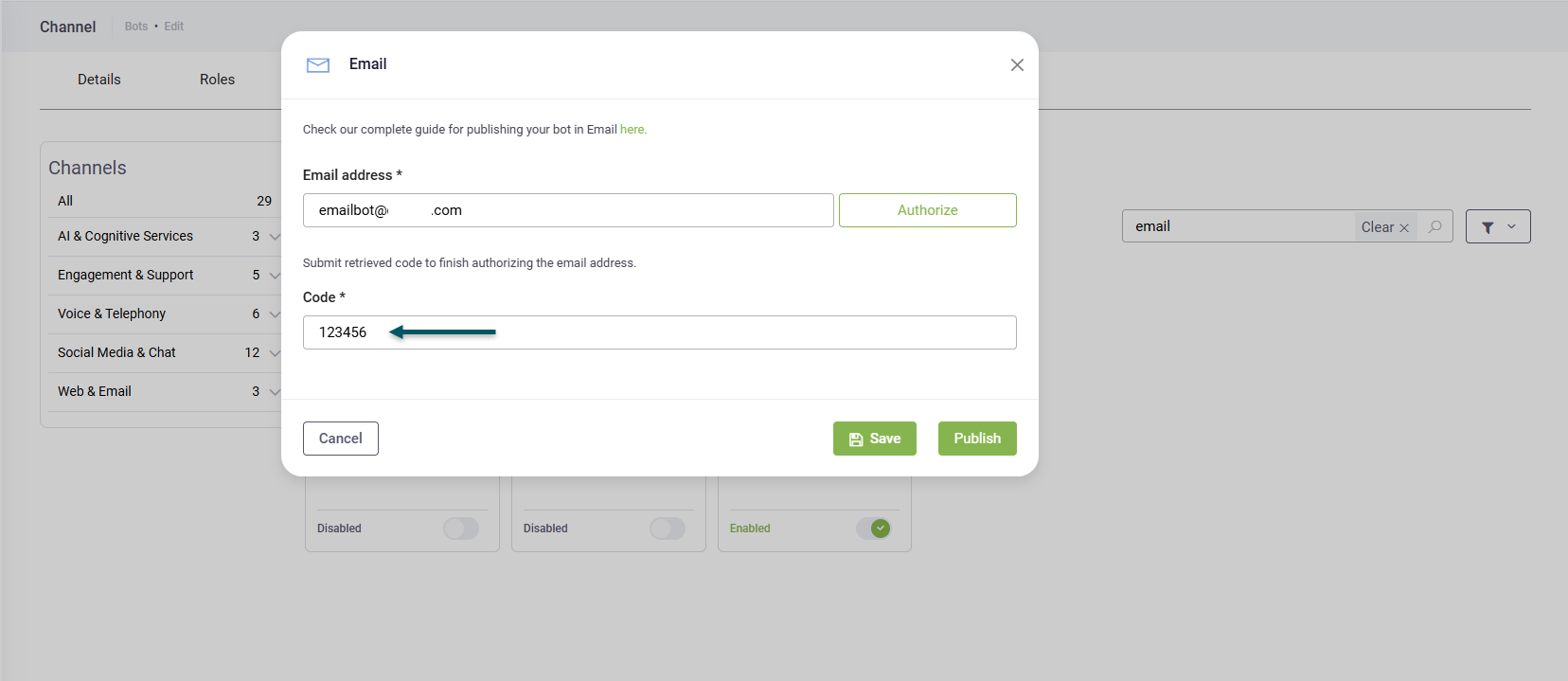
- In the Email address field, enter the dedicated Office 365 email account for the AI Agent and click Authorize.
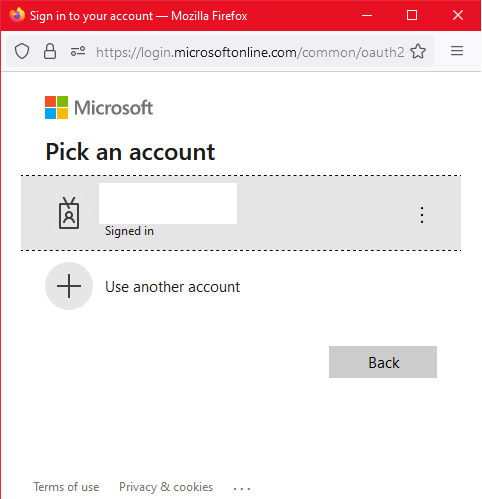
- The 'Sign in to your account' pop-up opens.
- Sign in with the dedicated M365 email account.
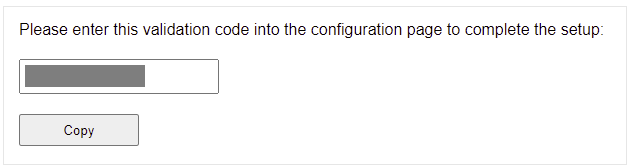
- After successful sign-in, a page opens displaying a validation code. Copy this code.
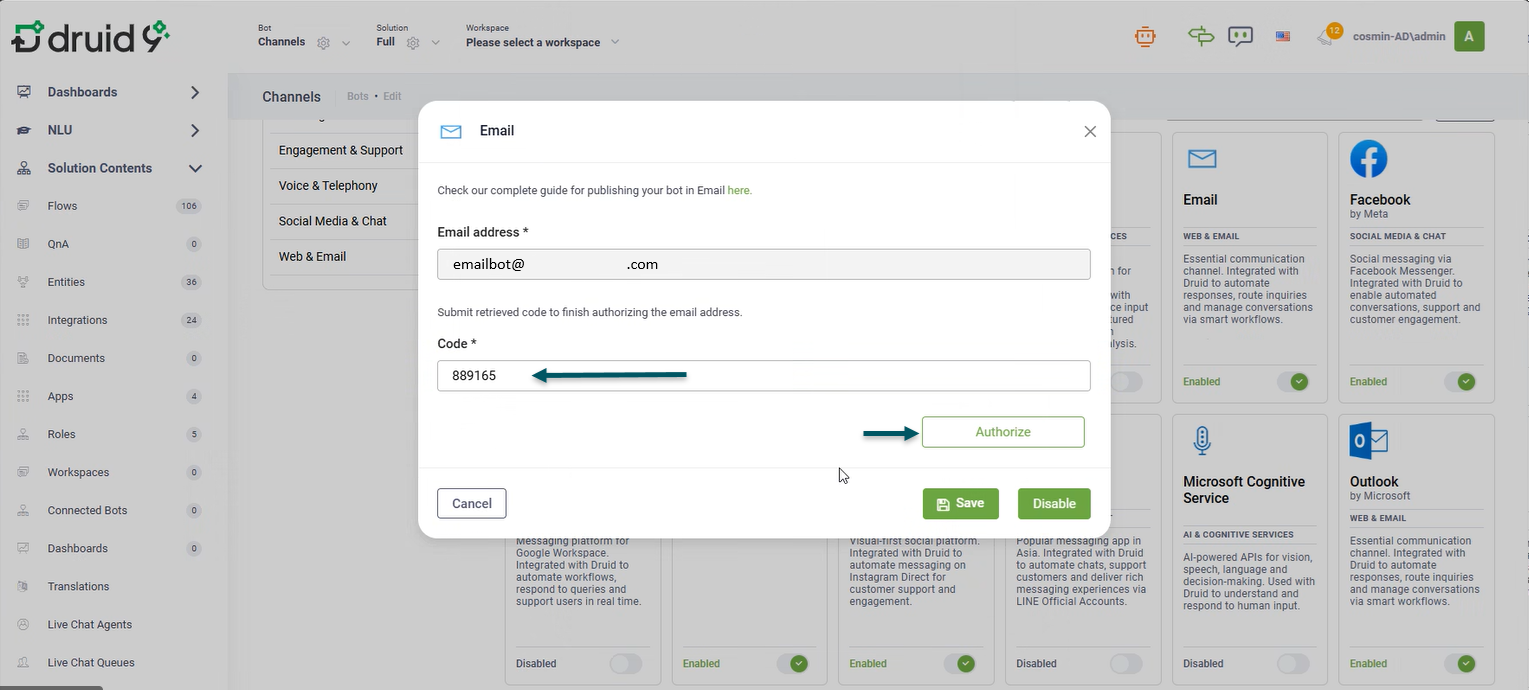
- Return to the Druid Portal. In the Code field, paste the validation code to finish authorizing the AI Agent email address.
- Click the Publish button. The channel activation might take up to 1 minute.
The channel configuration modal appears.
After the channel activates, the following fields are available in Druid:
- [[ChatUser]].ChannelId = "email"
- [[ChatUser]].UserId - Stores the email address of the sender.
Inactivating the channel
To inactivate the channel, follow these steps:
- Go to the Channels page, and click on the Email card.
- Click Authorize and sign in with the dedicated Office 365 email account .
- After successful sign-in, a page opens displaying a validation code. Copy this code.
- Return to the Druid Portal. In the Code field, paste the validation code.
- Click Disable to inactivate the channel.